
In addition to short videos, TikTok users can also share photo posts. A post containing multiple photos is known as a TikTok slideshow, photo carousel, or Photo Mode post. TikTok users commonly use this format to share travel photos, outfit collections, wallpapers, step-by-step tutorials, and recommendation lists. People who usually download TikTok videos will notice that slideshows work differently: instead of playing as one clip, they let viewers swipe through each image at their own pace. However, TikTok’s website usually does not provide an option to save each photo separately, while some posts in the app only offer the option to copy the link.
SSSTikTok helps you download public TikTok slideshows and displays the available photos in the same order as the original post. You can preview each image and download the photos you want individually. If the post includes background music, you can also save the available audio separately as an MP3. The results may also include the post cover and the creator’s public profile picture. Photos, audio, the cover, and the profile picture are provided as separate files and are not currently combined into a slideshow video.
Follow the guide below to learn how to use our TikTok slide downloader on your phone or computer.
How to Download TikTok Slideshow on Mobile
1. Find the TikTok photo slideshow
Open the TikTok app on your iPhone or Android phone and find the photo post you want to save. A slideshow contains at least two photos that you can view by moving left or right.
2. Copy the TikTo photo link
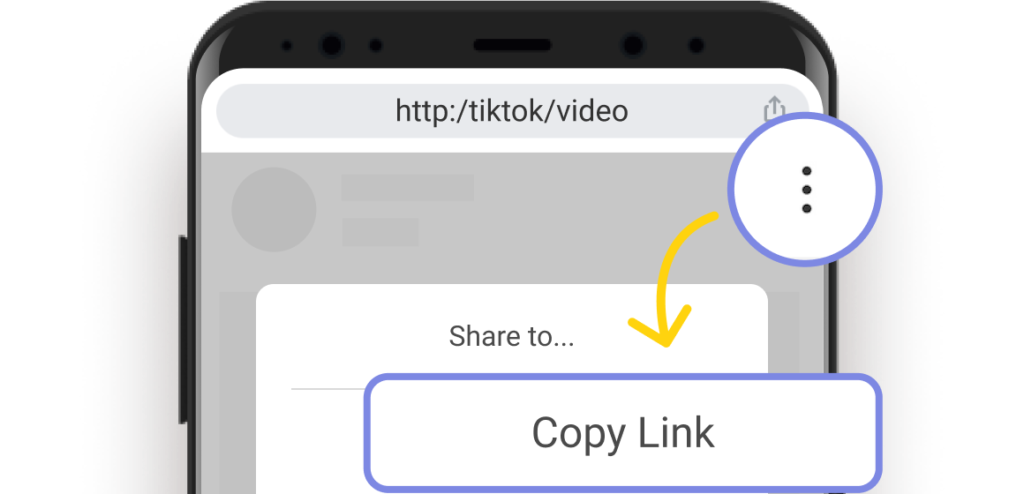
Tap the Share button on the post, then choose Copy link. TikTok may give you a short link beginning with vm.tiktok.com or vt.tiktok.com. You can paste either format directly into SSSTikTok without converting it to a full /photo/ URL.
3. Paste the link into SSSTikTok
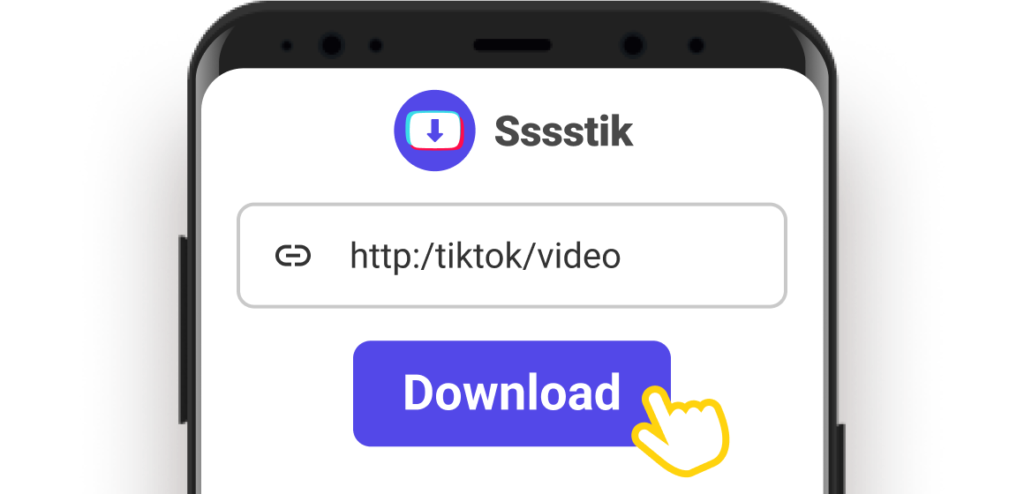
Open sssstik.com in Safari, Chrome, or another mobile browser. Paste the link into the box at the top of the page and tap Download.
4. Preview and download
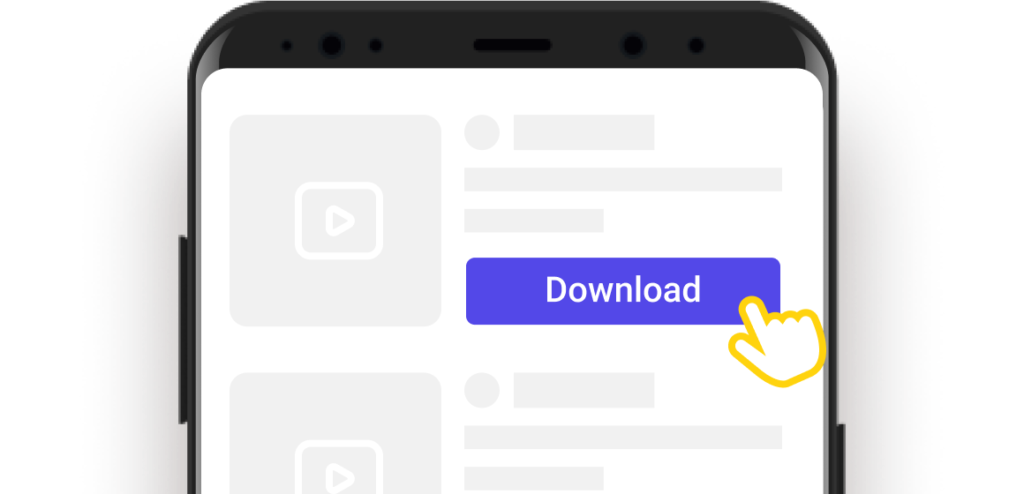
SSSTikTok will display the available slideshow photos in their original order. Preview each image and download the ones you want separately. Normally the format is JPG. You can also save the available background audio as MP3, along with the post cover and the creator’s public profile picture.
Where are the slideshow photos saved:
- On Android, downloaded photos usually appear in the Downloads folder.
- On iPhone, open Files → Downloads, then save the images you want to the Photos app.
How to Download a TikTok Slideshow on Windows or Mac
1. Open the slideshow in your browser
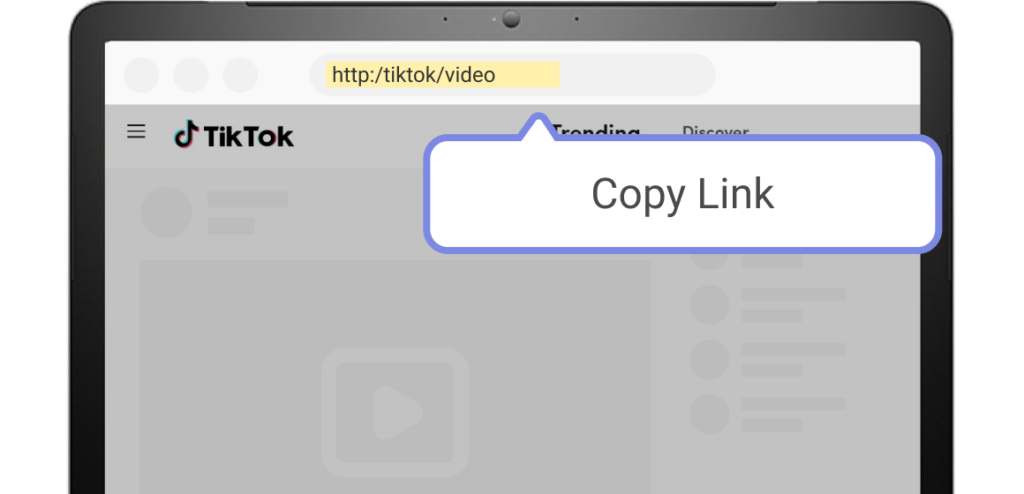
Go to TikTok.com on your PC or Mac and find the slideshow you want to download. Click the post to open it on a separate page. A full slideshow URL normally includes the creator’s username, /photo/, and a post ID, such as tiktok.com/@username/photo/123456789.
2. Copy URL and back to SSSTikTok
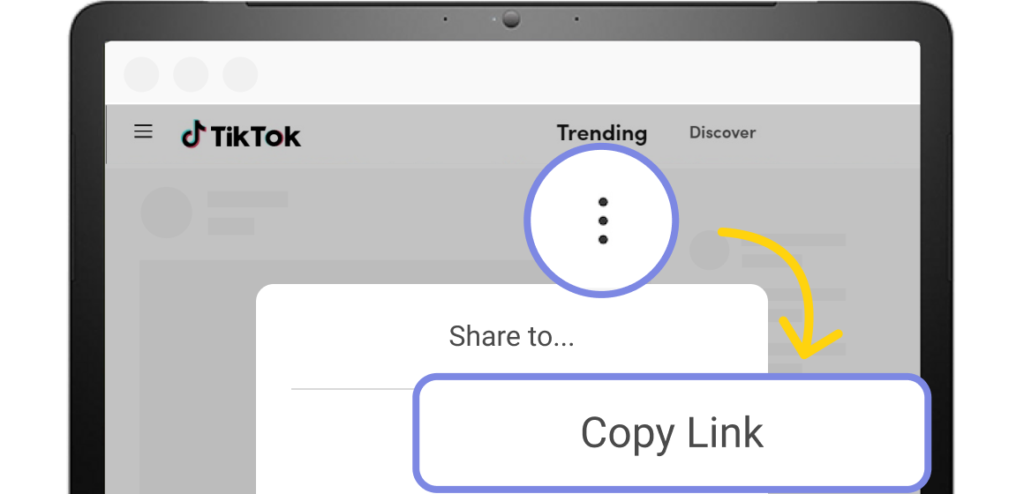
Copy the full URL from your browser’s address bar, then return to sssstik.com and paste it into the download box. Make sure you copy the slideshow URL rather than the creator’s profile URL.
3. Preview and Save TikTok slideshows
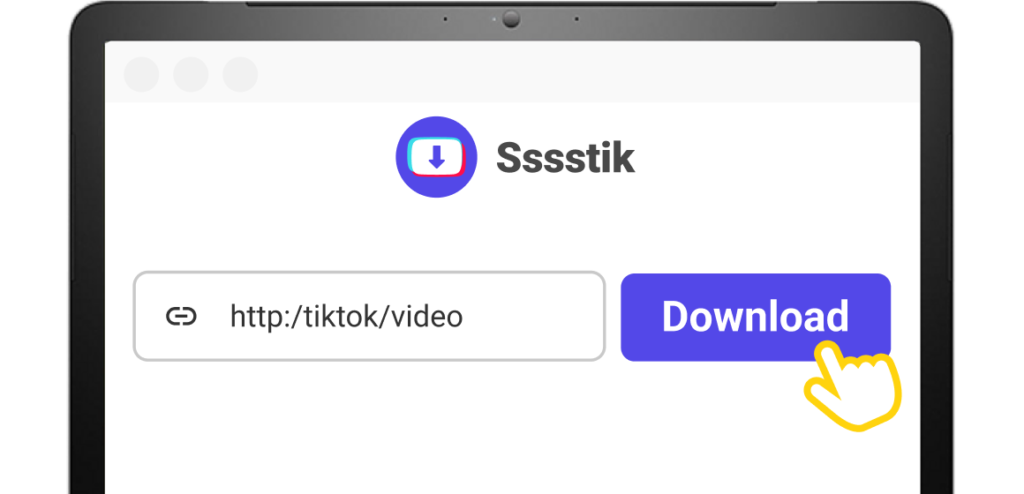
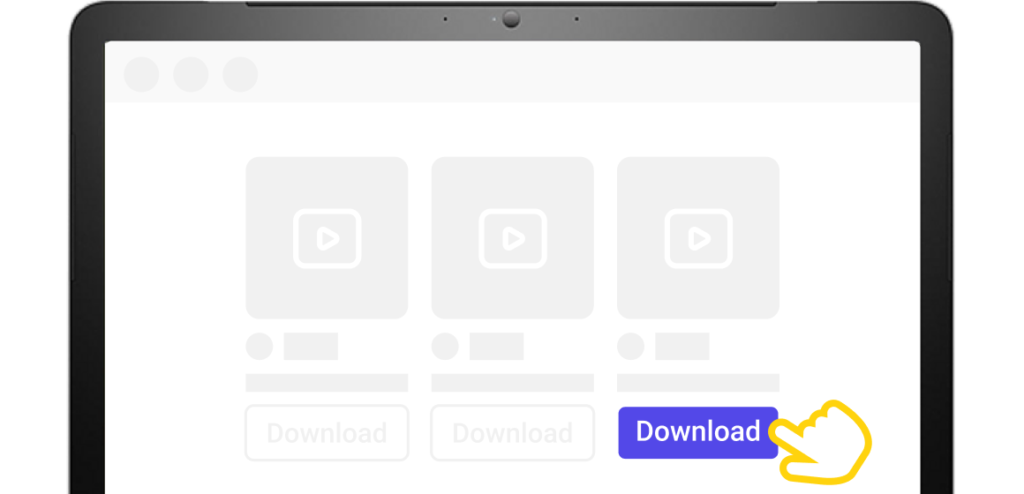
Click Download and wait for SSSTikTok to process the link. Preview the available photos in their original order, then download the images you want separately. You can also save the available background audio as MP3, along with the post cover and the creator’s public profile picture.
What Can You Download From a TikTok Slideshow?
A TikTok slideshow contains more than a set of photos. Depending on what TikTok makes available for the public post, SSSTikTok can also extract its background audio, cover image, and the creator’s public profile picture. Each item is provided as a separate file, so you can download only what you need.
Slideshow Photos
View the slideshow photos in their original order, preview them one by one, and download TikTok slides individually so you can save only the images you want.
Slideshow Photo Formats and Quality
Slideshow photos are usually downloaded as JPG or JPEG files, depending on the format TikTok provides for the post. SSSTikTok fetches the highest-quality version available, which is often HD, without artificially increasing the resolution. Because TikTok processes images after upload, the downloaded file may differ in size or resolution from the creator’s original photo.
Background Audio
Most TikTok slideshows include background music. When audio is available, you can download it separately as an MP3 and listen to it on your device.
Post Cover
Save the cover image used to represent the TikTok post when it is available.
Creator’s Profile Picture
You can also download the public TikTok profile picture shown with the slideshow post.
Why Use SSSTikTok for Slideshows Download?
Original-Quality Slideshow Photos
Clear images matter when you want to use a photo as wallpaper, keep an outfit for reference, or read the text in a tutorial. SSSTikTok does not apply extra compression or enlarge the image to create a misleading resolution.
Preview Before You Download
You may only want a few photos from a long slideshow. Click the View button in the bottom-right corner of an image to preview it before downloading, so you do not fill your device with photos you do not need.
Free and Without Ads
You should not have to close pop-ups or guess which download button is real. SSSTikTok is free to use and has no ads, so you can paste a link, preview the results, and save your photos without distractions.
No Login or Tiktok Account Required
There is no need to create another account or enter your TikTok password. Paste the link to a public slideshow and start downloading without providing your username, password, or other login details. This makes the process safer, since you do not need to share any sensitive account information with SSSTikTok.
SSSTikTok App Available – Android Only
If you regularly save TikTok content on Android and have the TikTok app itself, the SSSTikTok app gives you a more convenient option. There is no need to copy the link. Just scroll through TikTok and tap Share to download the slideshow you want to your gallery.
Maintained by a Real Team
TikTok sometimes changes how photo posts and links work, which can cause downloaders to stop working. Our team keeps an eye on these changes and updates SSSTikTok to keep the TikTok slideshow downloader running smoothly.
Limits of Our TikTok Slideshow Downloader
SSSTikTok Cannot Download Slideshows as Videos
TikTok slideshows can play like videos with photos and music, but SSSTikTok currently saves the photos separately. The entire slideshow cannot be downloaded as a single MP4 with its music and playback.
SSSTikTok Does Not Support Batch Downloads
If a slideshow contains multiple photos, each image needs to be saved individually. There is currently no option to download all slideshow photos at once.
SSSTikTok Does Not Offer Multiple Resolution Options
SSSTikTok provides the image version available from TikTok. You cannot choose between different resolutions or quality levels before downloading.
Common Questions
What Is a TikTok Slideshow Downloader?
A TikTok slideshow downloader is a tool that makes TikTok photo slideshow download easier by letting you save the photos and other available media from a photo post.
Can I Download TikTok Slideshows Without Watermarks?
Yes. If you’re looking for TikTok slideshow no watermark downloads, keep in mind that the result depends on the original image. Any logo, text, or creator-added mark already present in the source will remain.
Can I Download TikTok Slideshows as a Video?
Not at the moment. SSSTikTok currently provides the slideshow photos as separate files rather than one MP4 video.
Can I Download a Private TikTok Slideshow?
No. The post needs to be publicly accessible. Private, deleted, or restricted TikTok posts cannot be processed.
Why Is My TikTok Slideshow Not Downloading?
First, check that the post is still available and public. If it is, copy a fresh link from TikTok and try again. Temporary changes on TikTok can also cause some slideshow links to stop working for a while.
Can I Repost Photos From a TikTok Slideshow?
Downloading a photo does not give you ownership of it. If you want to repost or reuse someone else’s content, make sure you have the creator’s permission and follow the relevant platform and copyright rules.